
How to Connect Your Team's Docs to Claude (So It Actually Knows Your Answers)
Learning how to connect team docs to Claude is mostly a permissions problem, not a technical one. Claude can already read documents you paste in or upload — the gap is that those documents stop updating the moment you paste them. A remote connector fixes this by pointing Claude at your team’s actual live source: the same wiki, runbooks, and specs your teammates edit today, read fresh on every question instead of frozen at upload time.
Why Copy-Pasting Docs Into Claude Doesn’t Scale
The default way most people give Claude context is manual: open the doc, select the relevant section, paste it into the chat. It works for a one-off question. It breaks down the moment the answer depends on something that changes — an on-call rotation, a pricing table, an incident postmortem someone is still editing. Static uploads have the same problem in a slower-moving form: the file you attached in June doesn’t know about the edit someone made in July, and Claude has no way to tell you it’s working from an outdated copy.
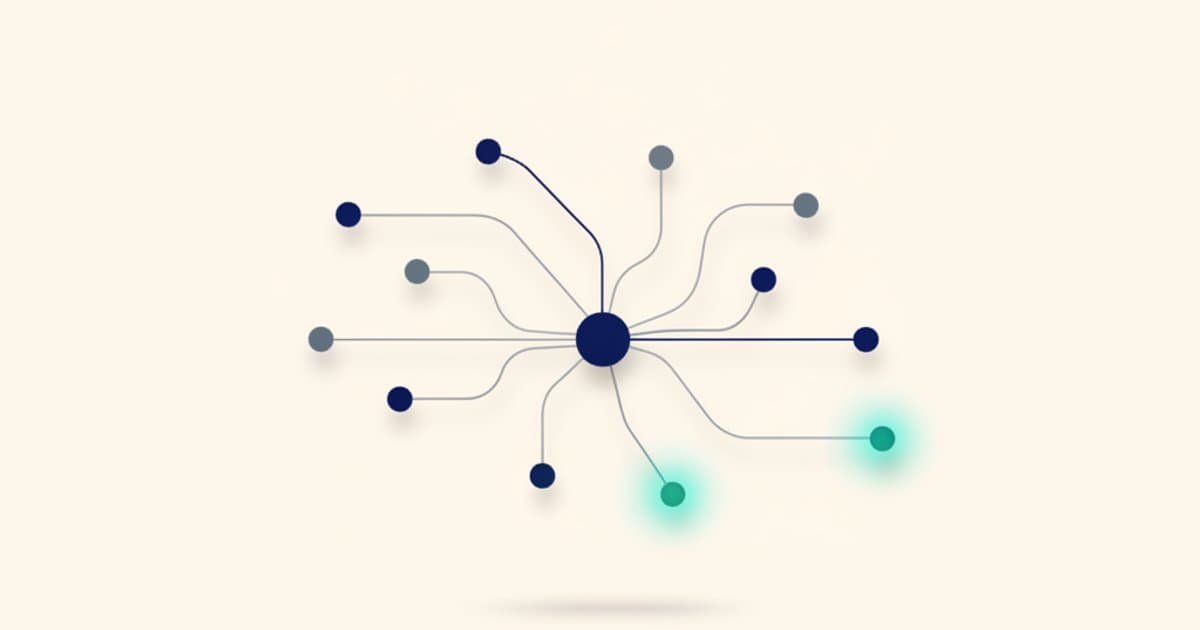
A remote connector solves this differently. Instead of feeding Claude a snapshot, you give it a live line back to the source — the same wiki or knowledge base your team already maintains. Ask a question in October, and Claude reads whatever is true in October, not whatever someone happened to paste months earlier.
What Is an MCP Connector, in Plain Terms?
MCP (Model Context Protocol) is the standard Claude uses to talk to outside tools and data sources. A remote MCP connector is a URL you add to Claude — think of it as telling Claude “when you need team context, ask this address, not your own memory.” You log in once, Claude and the source authenticate, and from then on every relevant question can pull current information from that source instead of relying on whatever text happened to make it into the conversation.
This is different from a plugin that answers one narrow question (“what’s the weather”). A team knowledge connector exposes your actual shared documentation — specs, decision logs, incident write-ups, onboarding guides — as something Claude can search and read on demand, scoped to whatever workspace and permissions you grant it.
How Do You Connect Your Team’s Docs to Claude?
The setup is a few minutes, not a project. Here’s the sequence.
1. Add the Connector
In Claude’s settings, add a remote connector by URL. For a Rootr workspace, that address is rootr.io/mcp. Claude treats it like any other MCP source — no separate app to install, no export step on your end.
2. Log In
Claude opens a login flow for the connector. You authenticate the same way you’d sign into the workspace directly, and Claude receives a scoped connection — it can read what you’re allowed to read, nothing more.
3. Choose the Workspace and Permissions
Pick which workspace to connect and confirm what Claude can access. This is the step people skip past too quickly and then wonder why Claude can’t see the doc they meant — the connection is scoped on purpose, so it’s worth double-checking the workspace matches where your team actually keeps its documents before you start asking questions.
From there, Claude can search and cite your team’s living documentation the same way it would reason over any other context — except this context updates itself. When a teammate edits the runbook Thursday afternoon, Claude’s answer Thursday evening reflects the edit, with no re-upload required.
What Changes Once the Docs Are Live
The practical difference shows up in the questions you’re willing to ask. When context is a manual paste, people under-ask — they only bring in a document when they already suspect it’s relevant, because pulling it up is friction. When the connection is live, asking Claude to check “what does the team’s doc actually say about this” costs nothing, so it stops being a special step and starts being the default first move. That habit shift matters more than any single answer: it’s the difference between Claude occasionally seeing your team’s knowledge and Claude routinely working from it — a version of the same gap we wrote about in the tribal knowledge tax, where what a team knows and what’s actually written down and reachable are two different things.
FAQ
Do I need to upload files first?
No. That’s the point of a remote connector over a static upload — Claude reads the source directly through the connection, so there’s nothing to re-upload when the source changes.
Can I limit what Claude sees?
Yes. Access is scoped to the workspace and permissions you choose during setup, the same way any teammate’s access would be — Claude only reaches what you’ve authorized it to reach.
Does this work with more than one workspace?
You can add multiple connectors and choose which workspace to query, so teams that split documentation across a few sources aren’t forced to pick just one.
Is this different from Claude’s file upload feature?
Yes — an uploaded file is a snapshot frozen at the moment you attached it. A remote connector is a live link, so answers reflect whatever is true in the source right now, not whatever was true when you last remembered to upload something.